The installation |
  
|
The installation |
|
An installation wizard is available for your Xpert-Timer. You can decide, if you want to install the trial version, the full version or an update of your existing Xpert-Timer. Use the full version option if you own a license file and for example move from one computer to another.
Execute the file XTInstBasicEN.exe
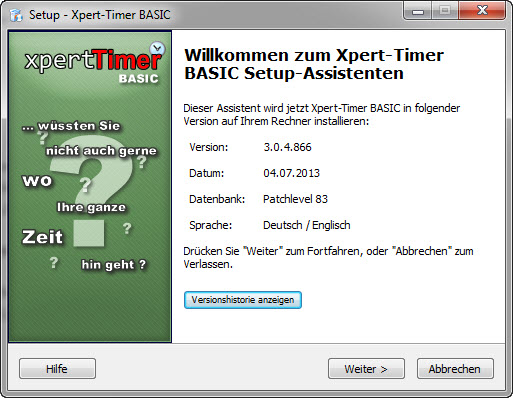
This dialog shows you what version is going to be installed on your computer. Click on "View Version History" in order to see the changes made to the program.
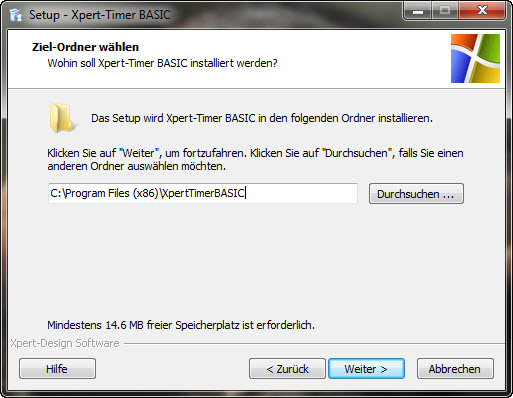
The wizard automatically checks, if there's an older version of Xpert-Timer installed on your system. The standard is set to install into you Programs directory. On Windows 7 it's C:\Programs(x86). If you want to install Xpert-Timer in another directory, you can choose the directory here:
Choose your type of installation (30-Day Trial, Full Version, Update). If you've never installed Xpert-Timer on your system, choose the 30-day-Trial Version.
Go ahead and install the Full version if you own a license file and you needed to reinstall the program. This might be necessary if you switch to another computer, install a new operating system or similar.
If you've already got a version of Xpert-Timer installed, you can update it by simply choosing "Update". Xpert-Timer recognizes your installed version and updates automatically.
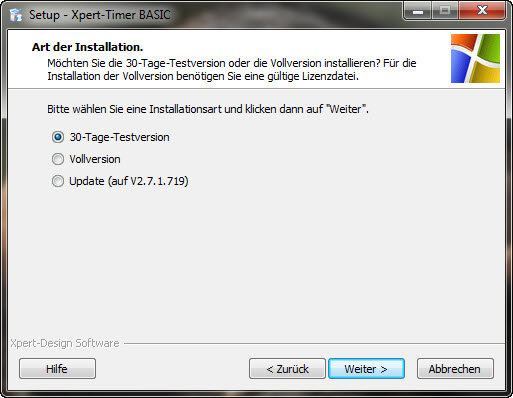
You can trial Xpert-Timer for 30 days. After those 30 days, you can continue using the data when you purchase a full license.
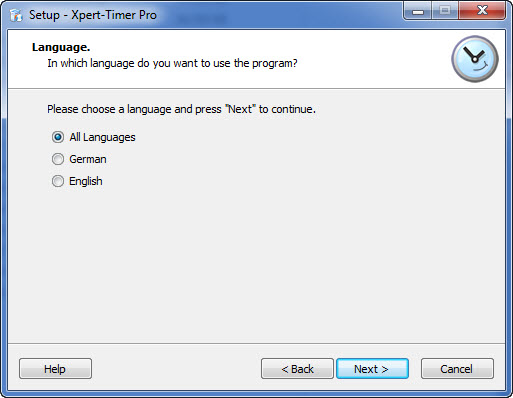
Choos the language you want to use in your Xpert-Timer system. Xpert-Timer is available in English and German.
|
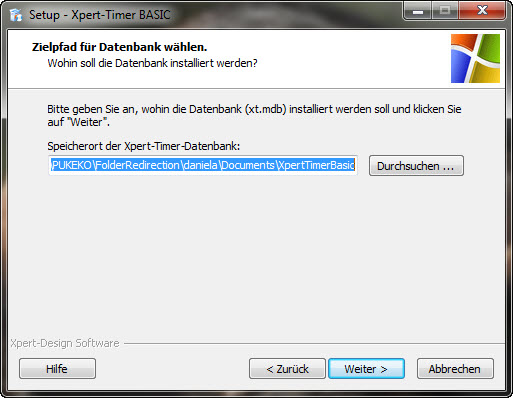
Xpert-Timer Basic is delivered with a SQLite database, but you can also choose to use the Access database. It will work, too. |
Enter the path where you want to save your Microsoft Access database. Make sure you have writing access to the directory, which is necessary using Windows Vista or Windows7.
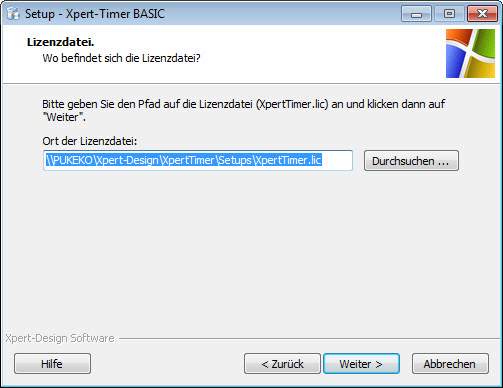
Path to the license file (When installing the "Full version")
If you install the full version of Xpert-Timer, you will be asked to enter the path to the license file. Hit Browse to find the file in your system and click Next. Please note, that you only need to activate the license file once, as the data is saved in your database. In a multi user environment you also only have to activate the license file once.
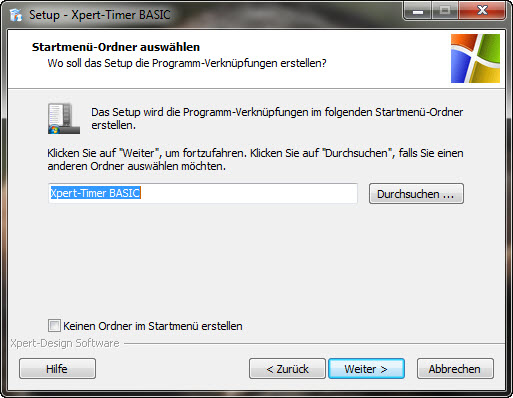
Decide the name of your Xpert-Timer in your Windows Start Menu Folder. This way you can start up Xpert-Timer more easily.
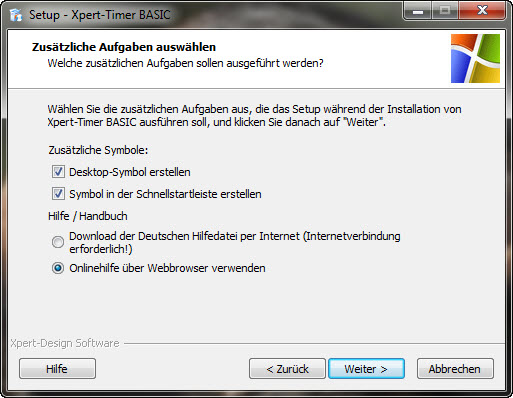
This dialog offers different additional tasks to execute in the setup. You can automatically create a desktop link to have quick access to your Xpert-Timer. The Quick Launch icon will appear besides your Windows "Start" button.
In order to use the Xpert-Timer help file you can either download the file and save it locally or use the online help if you have an internet connection. Either, or, the help file is worth a look.
If you installed Xpert-Timer on a network drive the downloaded helpfile might not work due to a Microsoft security update. Please choose the online help instead.
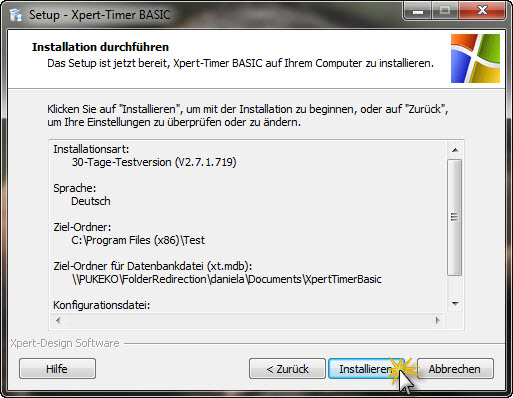
Double check all your settings in the overview.
Now Xpert-Timer is installed and can automatically start up when finishing the setup.
|
Hint |
|---|---|
Make sure your read the chapter "Tips and tricks"! |
|

