Tasks / To-Dos |
  
|
Tasks / To-Dos |
|
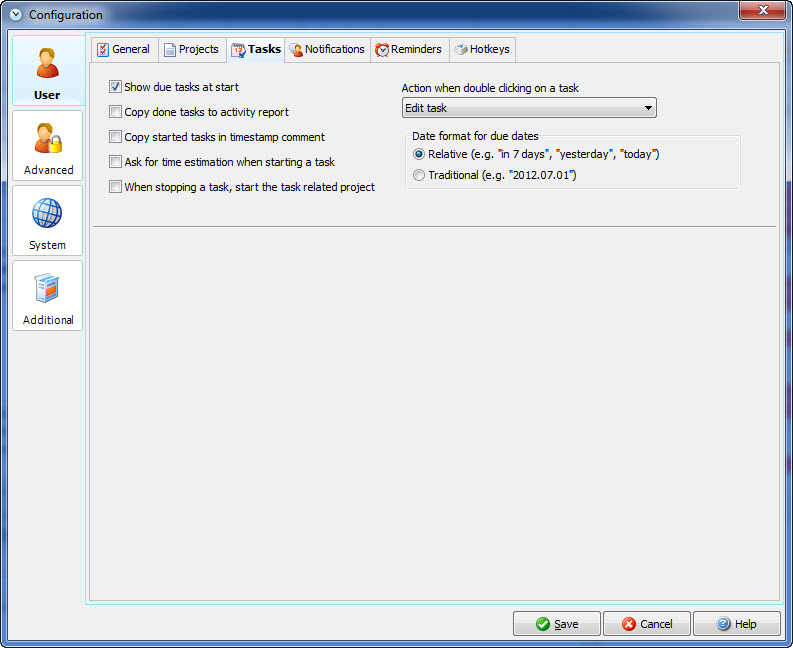
Action when double clicking on a task |
Decide here what you want Xpert-Timer to do, if you double-click on a task. You can either Edit the task or start timing the task, |
Show due tasks at start |
When you start up Xpert-Timer you get prompted a dialog with all open and due tasks. This way you get an overview of what you need to work on today. You can deactivate this dialog here. |
Copy done tasks to activity report |
If you finish a task, the subject of the task will be copied to the activity report. |
Copy started tasks in the timestamp comment |
As soon as you start timing a task, the subject of the task is copied into the comment field of the timestamp. |
Ask for time estimation when starting a task |
In order to calculate your daily work time you can estimate every single task. This allows to identify your time wasting task and to double check if you estimate the duration correctly. If you right click on the estimated duration of the project belonging to the task, you can add the sum of the estimated tasks of the project. |
When stopping a task, start the task related project |
When you stop the timer of a taks you can have Xpert-Timer start the linked project automatically, so the time keeps running on the correct project. |